

Chats Manager organizes conversations into named, colored lists such as Clients, Follow up, or Family. A conversation can belong to more than one list. Colored badges appear beside the conversation, and list/color filters help you find the right queue without changing the messages or Telegram account.
Before you start
Open TGBotSender and connect the Telegram account whose conversations you want to organize. Wait until its chats are available. You can create list definitions without connecting another service or setting up a server. Lists are local to this device, not Telegram’s synchronized folders.
A list definition can be reused across accounts, but membership belongs to one conversation on one account. Adding Alicia under Sales does not automatically add Alicia under Support. Always check the account label.
Step 1 — Open Chats Manager
- Open Chats → All Accounts, Account Chats, or another Chats view.
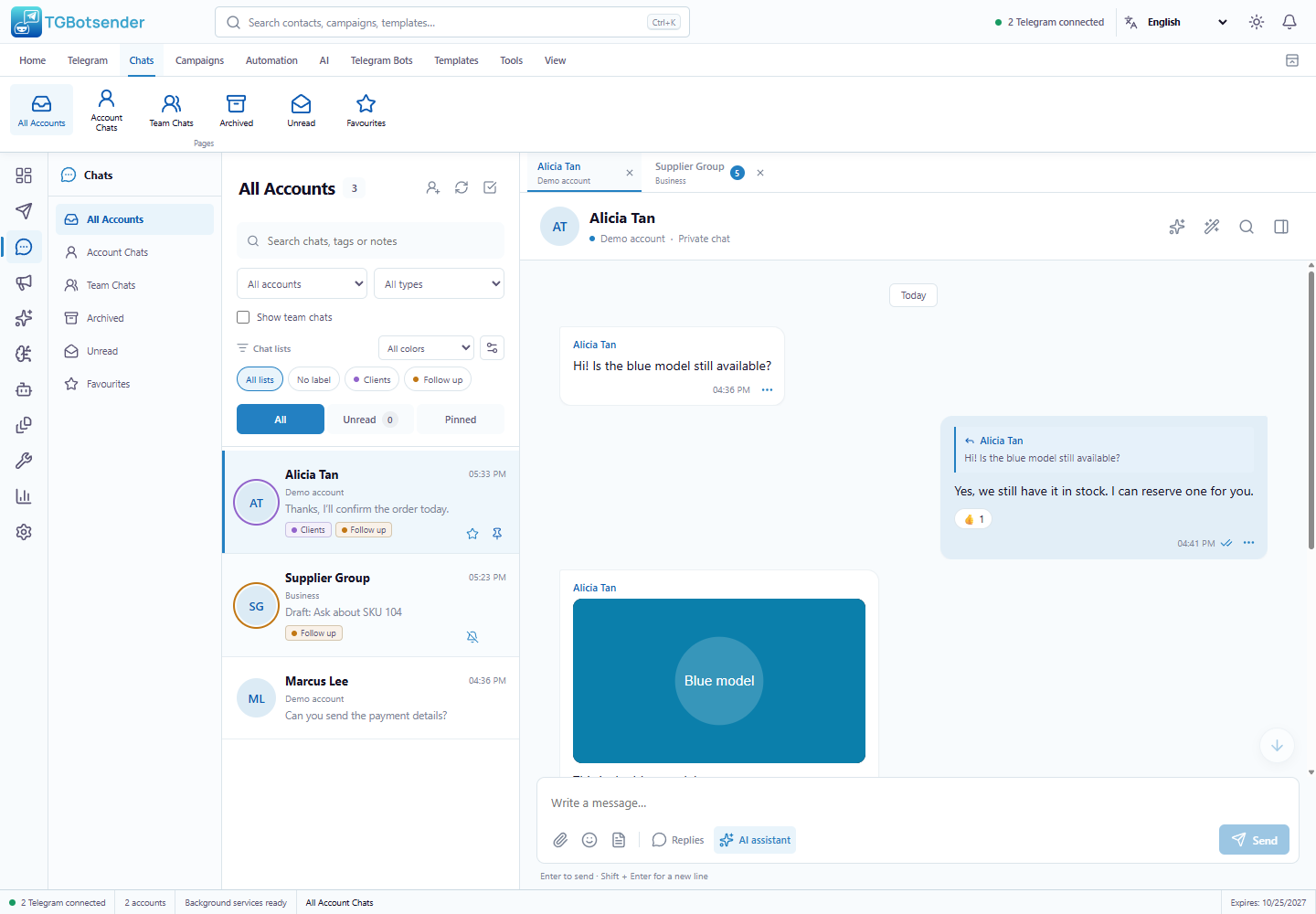
- Find Chat lists in the conversation sidebar, below the account/type filters.
- Select the sliders/settings icon beside All colors. Its label is Chats Manager.
- The manager shows existing lists and their saved conversation counts. A fresh workspace starts with no lists.
Step 2 — Create a label and choose its color
- Select New list.
- Enter a List label, for example Clients. Use 1–40 characters without line breaks or control characters.
- Choose a color: Blue, Green, Teal, Orange, Red, Purple, Pink, or Grey.
- Select Save changes. A new list has no members until you assign conversations.
- Repeat for another queue, such as Follow up in Orange.
Labels must be unique without regard to letter case: Clients and CLIENTS cannot be separate lists. You can create up to 50 lists. Label/color form edits require Save changes; closing the form does not save them.
Step 3 — Assign lists from the right-click menu
- Close the manager and find the conversation in the chat list.
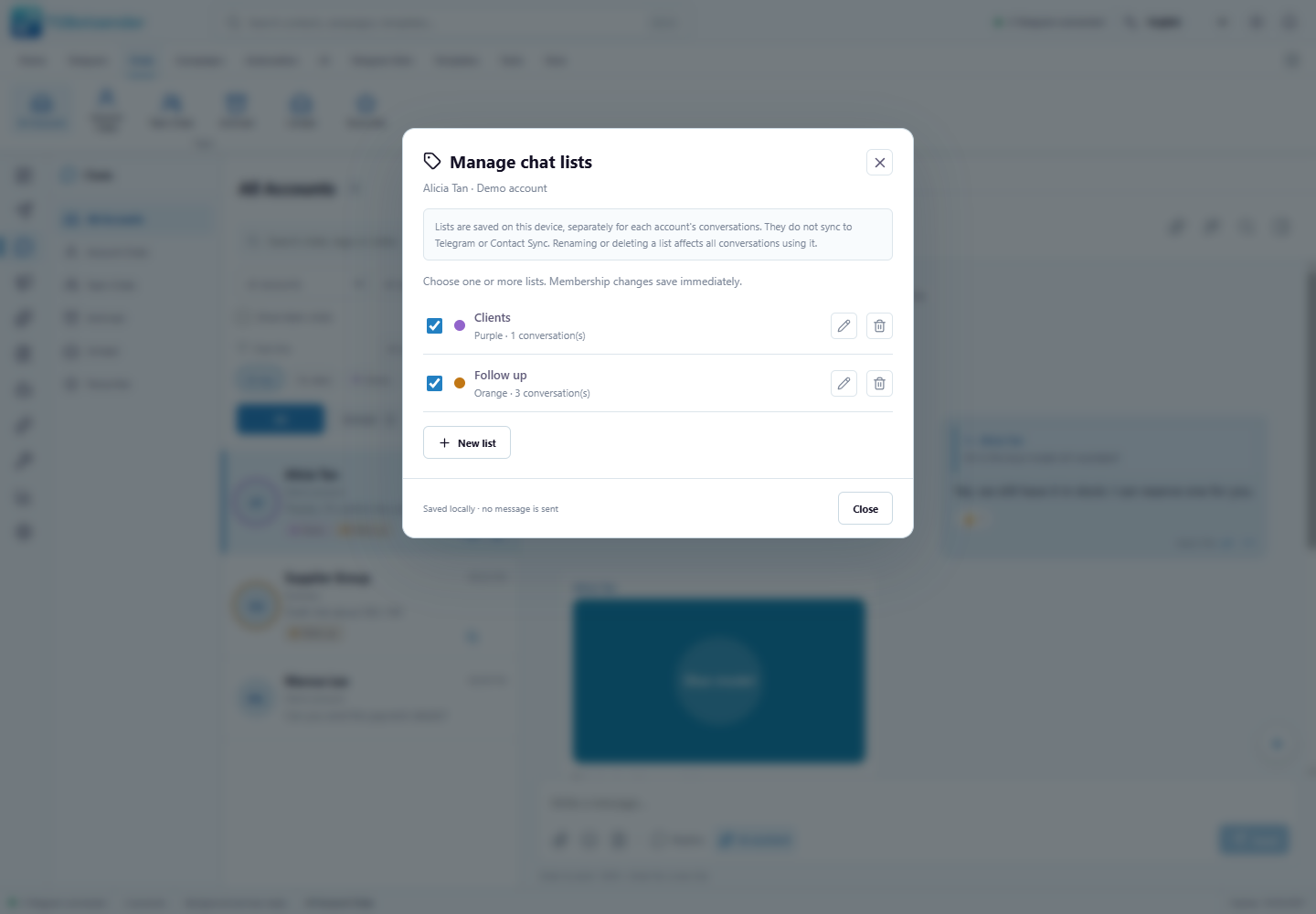
- Right-click the conversation and select Manage chat lists. This does not switch your open conversation or send a message.
- Check the contact and account shown at the top of the dialog.
- Check each list you want to assign. For example, select both Clients and Follow up.
- Wait for each change to finish, then select Close. Membership changes save immediately; there is no separate membership Save button.
To remove just this conversation from one list, reopen the dialog and uncheck that list. The other assignments remain. Keyboard users can focus the conversation row, press Shift+F10, then navigate the menu with the arrow keys and Enter. Escape dismisses the menu.
Step 4 — Manage lists from Chat details
- Open the conversation.
- Select Chat details in the conversation header.
- Find the Chat lists section and select Manage chat lists.
- Check or uncheck the desired lists, then close the dialog.
Both entry points use the same assignment dialog. List changes do not overwrite notes, CRM tags, favorites, customer status, or Team Chats membership. Unsaved notes in the open details panel remain available when you return; use that panel’s Save changes to save those notes.
Step 5 — Read the contact’s colored badges
- Assigned labels appear below the conversation preview in the chat list.
- The avatar gains a colored outline from its first displayed list. Other list colors remain visible on their badges.
- The row displays up to two badges. A +count indicates additional lists; hover to inspect the full list names, or open the assignment dialog.
- Favorites, mute status, pinned chats, unread counts, and the sending account remain separate indicators.
Step 6 — Filter conversations by list and color
- Select a named list chip, such as Clients, to show its conversations in the current Chats view.
- Select All lists to remove the named-list filter, or No label to show conversations without any assigned list.
- Use the All colors dropdown to select a color. A conversation matches if any of its assigned lists has that color.
- Combine these with account, search, chat type, unread, pinned, favorite, archive, or Team Chats filters as needed.
- If nothing matches, try another selection or select Clear list filters in the empty state. Check any remaining search/account filters too.
Filters intersect. A conversation assigned to purple Clients and orange Follow up still matches Clients + Orange, because it belongs to Clients and also has an orange list. Selecting All lists does not reset the color filter; choose All colors as well to remove that restriction.
List filters do not reveal hidden team contacts, move archived chats into the main inbox, or change the sender of an already-open conversation. Check the account in the conversation header before sending. All lists and No label use the currently loaded Telegram chat-page scope; they are not exports of every historical conversation.
Step 7 — Rename or recolor a list
- Open Chats Manager, or Manage chat lists for a conversation.
- Select the pencil beside the list.
- Change its List label or color, then select Save changes.
- Check the updated badges and filter chip. Existing members stay assigned to the renamed list.
Editing a list definition affects all conversations using it on this device, including other accounts. The displayed conversation count includes saved memberships outside the current inbox filters, such as archived chats or disconnected accounts.
Step 8 — Remove membership or delete a list safely
- Remove one conversation: open its Manage chat lists dialog and uncheck the list.
- Delete the whole list: select the bin/delete control beside that list in the manager.
- Read the confirmation and affected conversation count. Select Cancel if you only intended to remove one contact.
- Select Delete only when you want to remove that list from every conversation using it.
Deleting removes the list and its memberships, not contacts, messages, notes, or other lists. It does not send a message, mute a chat, remove a team member, or delete a Telegram conversation. Recreating the same label creates a new empty list; previous memberships are not automatically restored.
Example — Separate clients from follow-up work
Create Clients in Purple and Follow up in Orange. Assign Alicia to both, and assign a supplier conversation only to Follow up. Clients shows Alicia; Follow up shows both. No label shows unassigned conversations. The same person under a second account must be assigned separately.
Local storage and transfer limits
Chats Manager lists stay on this device. They are not synchronized to Telegram folders or other devices, and they are not included in Contact Sync, contact import/export, or Team Chats list export/import. Your app’s database backup includes them; protect backups as personal data and understand that restoring an older backup restores its older local list state too. No website server setup is required to use this feature.
Troubleshooting
- Cannot find the manager: look for the settings/sliders icon beside All colors in a Chats workspace. Alternatively, right-click a conversation or open Chat details.
- No matching conversations: check the named list, color, account, search, type, unread/pinned filters, archive view, and Show team chats preference.
- Same person has different labels under another account: membership is intentionally account-specific. Assign the second conversation separately.
- List label rejected: check the 1–40 character limit, remove control characters, choose a case-insensitively unique name, and keep within the 50-list limit.
- Membership could not be loaded: select Retry before changing anything. The dialog blocks edits after a failed load.
- Save failed: review the saved state before retrying. A saved membership and a form edit are different operations.
- Badges missing on another device: these lists do not transfer with the Team Chats list. Keep organization local or use your normal full-database backup/restore workflow when moving your workspace.
Related: use the unified chat workspace, message and conversation actions, and organize Team Chats.