
Use Team Chats export/import to copy your team contact list to another TGBotSender installation. You must sign in to the same Telegram accounts on the destination device first. Importing a list never grants account access or signs in for you.
What the file includes
The version 1 team-chats.json file contains the account Telegram user IDs and labels, contact Telegram user IDs and display names, and export time. It does not contain passwords, login codes, session files, API keys, license information, notes, tags, drafts, or message history. Protect it as personal data and share it only with trusted people.
Export from the original device
- Connect every Telegram account that has team members and wait until each is ready.
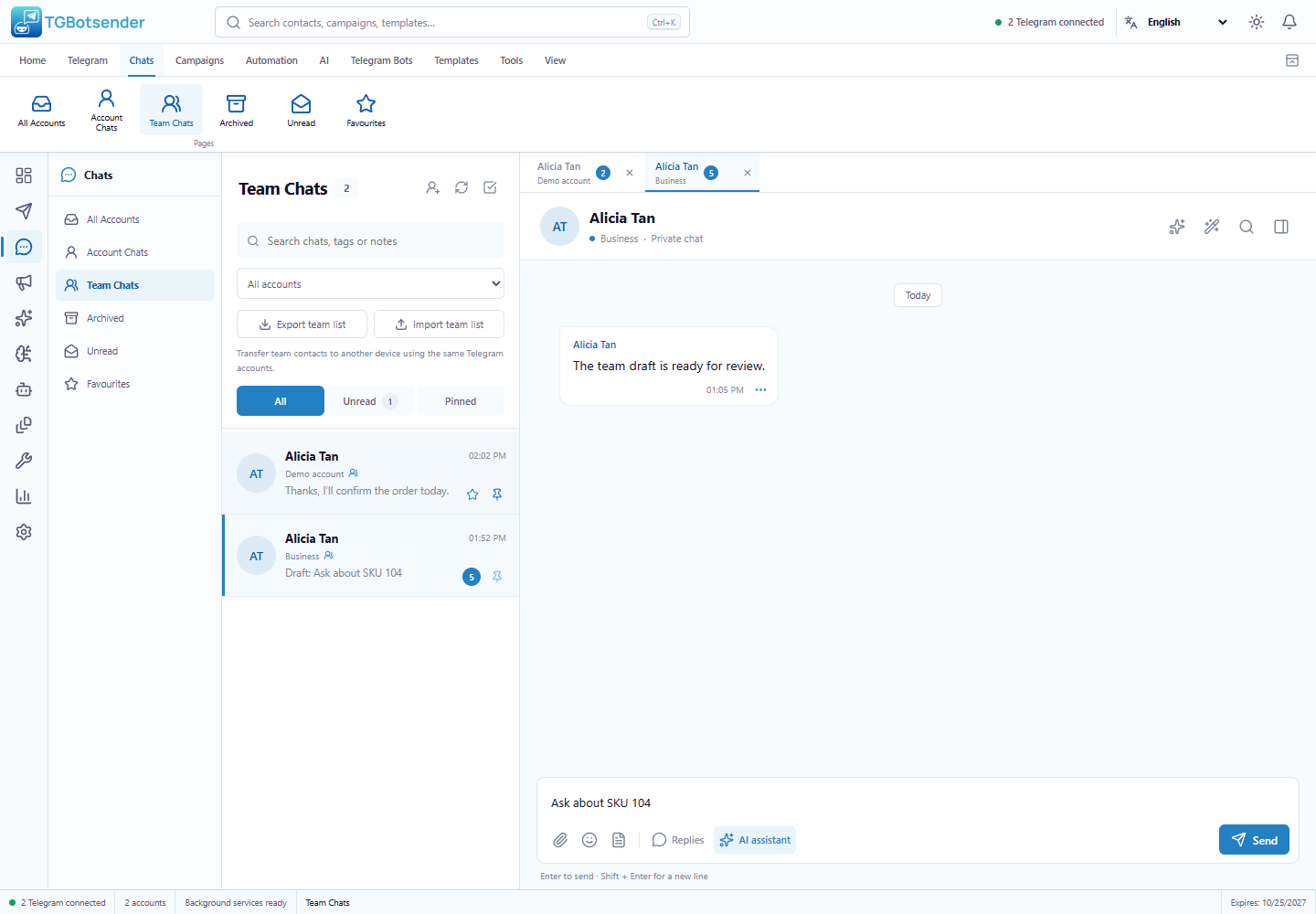
- Open Chats → Team Chats.
- Select Export team list.
- Choose a safe folder and save the JSON file. Export includes all marked team contacts across accounts, not just the current account filter.
- Check the exported contact count, then transfer the file securely to the other device.
If an account is unavailable, reconnect it and retry. The app does not intentionally save an incomplete export.
Import on the other device
- Install and open TGBotSender, meet its normal licensing requirements, then connect the same Telegram accounts used in the export.
- Open Chats → Team Chats → Import team list and select the JSON file.
- Review the preview. Expand an account to inspect its contact names. The preview shows up to 100 names per account; all listed contacts are still processed.
- Check which source accounts match a connected account on this device. Matching uses Telegram account identity, not the account name or a local database number.
- Select Import team list to confirm. Accounts that are missing, not ready, or ambiguous are skipped rather than assigned to another sender.
- Read the result counts, then open a restored conversation and verify the sending account.
For each Telegram identity, connect exactly one matching account on the destination. If none can be matched, the confirm button stays disabled. The same contact under two different Telegram accounts remains two separate entries.
Understand the import results
- Added: newly marked team conversations.
- Already members: existing team members kept without duplication.
- Account unavailable: contacts skipped because the matching account was missing, not ready, or duplicated.
- Failed: contacts whose private conversation could not be validated or saved. Check the account connection and Telegram availability, then retry.
Import adds membership without clearing existing members. Reimporting the same list is safe. Existing notes, tags, drafts, and conversations remain untouched. Removing someone on the source device does not remove them on the destination; use Chat details → Remove from team there when required.
File limits and troubleshooting
- Use the original supported version 1 Team Chats JSON export, up to 2 MB and 5,000 contacts. This is not a CSV contact file, Contact Sync snapshot, or full application backup.
- Malformed files, unsupported versions, invalid identities, and unexpected fields are rejected. Duplicate account/contact pairs are merged.
- If an account name changed between devices, the match can still succeed because its Telegram identity is unchanged.
- Reconnect unavailable accounts and import the same file again to retry skipped contacts. Successfully imported members will not be duplicated.
- The list does not transfer or guarantee access to messages. Conversation history is loaded separately from Telegram through the connected account.
- Future membership changes require another explicit transfer. No server or shared network folder is needed.
For everyday member management and inbox visibility, see Organize contacts with Team Chats. For account setup, see Connect a Telegram account.