
Team Chats organizes existing Telegram private conversations into a separate view. It works across your connected accounts without a shared server or network folder. Each conversation still sends and receives through its original Telegram account.
Before you start
Connect the Telegram accounts you own or are authorized to use and wait until they are ready. Team membership is available for private chats, not groups or channels. If a contact is not listed, start a private conversation through Telegram first, then refresh the chat list.
Add team members
- Open Chats → Team Chats, All Accounts, or Account Chats.
- Select the person-plus icon labelled Add team members.
- Search for a contact, or use the account filter. Check the account label beside every contact.
- Select the contacts you want to add. To include the same person under two accounts, select both account-labelled entries.
- Select Add team members to confirm. Already-added contacts are shown as Added.
Alternatively, open a private conversation, select Chat details, then Mark as team member.
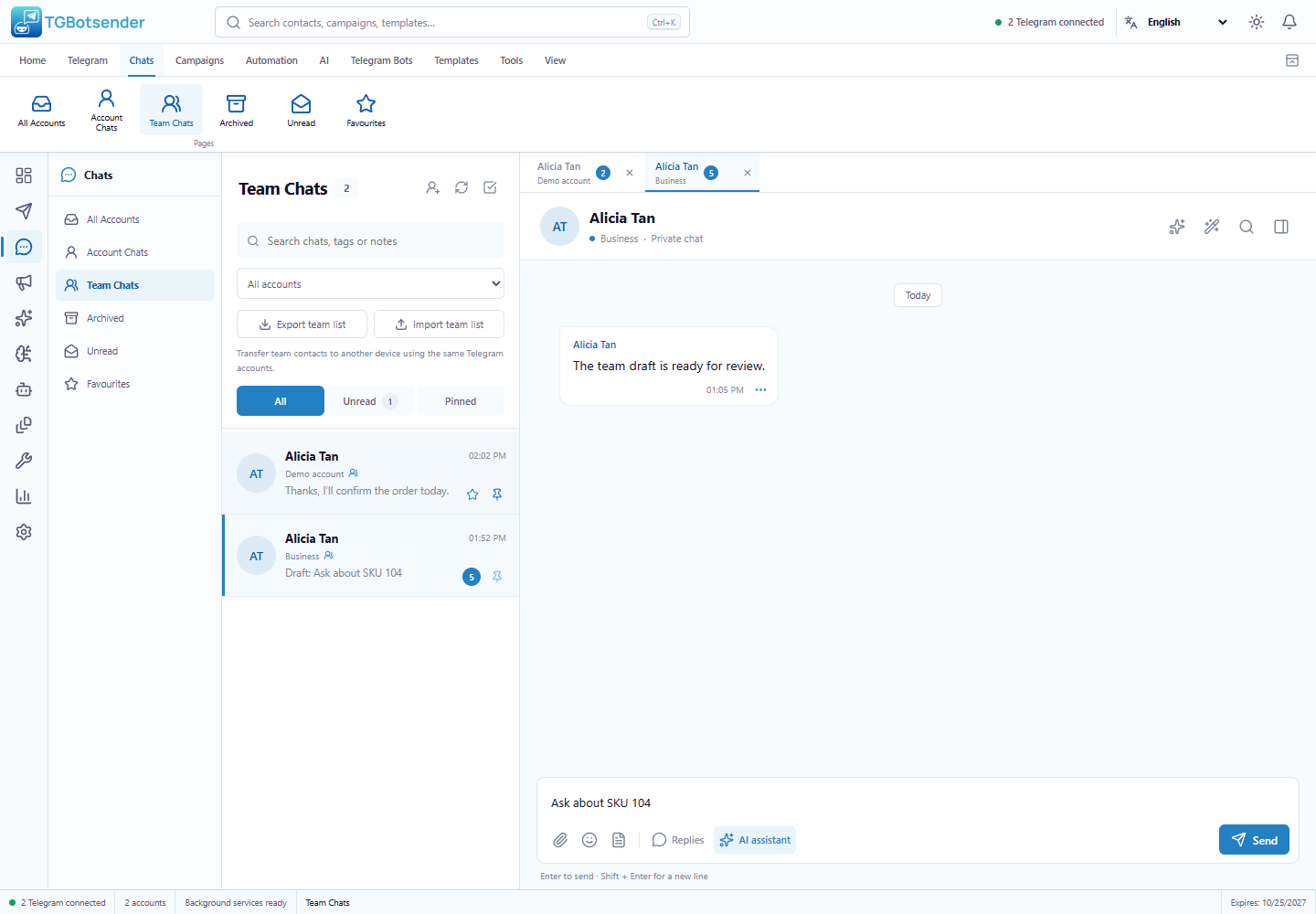
Chat through the correct account
Open Chats → Team Chats to see marked contacts across accounts. Search or filter by account, then select a conversation. Check its account label in the list, tab, and conversation header before sending. Messages and drafts stay separate even when both entries have the same contact name.
For example, marking Alicia under both Support and Sales creates two Team Chats entries. Replying from the Support entry uses Support, not Sales.
Show or hide team contacts in ordinary inboxes
- Open All Accounts or Account Chats.
- Team contacts and their saved tabs are hidden by default in these views.
- Enable Show team chats to reveal them, or disable it to hide them again.
- Repeat in the other view if needed. Each view remembers its own preference on this device.
Hiding a team contact does not mute, block, delete, or stop its Telegram conversation. Archived, Unread, and Favourites remain separate focused views.
Remove a team member
- Open the contact in Team Chats.
- Select Chat details → Remove from team.
- The contact returns to ordinary account inboxes. The conversation, saved draft, notes, tags, and contact are not deleted.
Membership belongs to one contact on one Telegram account. Removing Alicia from Support does not remove Alicia from Sales.
Use the same team list on another device
Follow Export and import a Team Chats contact list. Team membership is local until you explicitly transfer it. Team Chats is not a shared assignment, role, approval, or live collision-detection system.
Troubleshooting
- Contact missing: confirm the correct account is connected, clear search and account filters, and refresh. Only private chats can be added.
- Contact disappeared from All Accounts: enable Show team chats or open Team Chats.
- Same name appears twice: inspect the account labels. Separate entries for separate senders are intentional.
- Other device has a different list: export a fresh team list and import it there. Membership changes are not synchronized automatically.