
Telegram Bots → Stars Payments manages one-time payments for digital goods and services through a connected bot’s private chat. Create an invoice for an existing subscriber, wait for Telegram’s payment confirmation, and keep a local record of delivery or a full refund. This is separate from buying a TGBotSender license through the website checkout.
Before you start
- Use a bot you own or are authorized to manage, not an ordinary Telegram user-account sender. This local workflow does not require Telegram Business, Stripe credentials, or a separate hosted payment server.
- Prepare a public HTTPS purchase-terms page and clear payment-support instructions. Explain what you sell, how you will deliver it, and how customers can ask for help or a refund.
- Keep the computer awake, online, TGBotSender running, and the bot enabled during checkout. Do not use another polling app or webhook for the same bot. Telegram needs a checkout response within 10 seconds; closing the app or losing connectivity can prevent payment.
- Use the desktop app for real transactions. Browser preview only simulates the interface and does not send invoices, collect payments, or issue refunds.
Step 1 — Connect and select the payment bot
- Create your bot using @BotFather, then connect it in Telegram Bots → Bot Accounts.
- Enable the bot’s worker and confirm that its Telegram connection is ready.
- Open Telegram Bots → Stars Payments.
- Choose the correct Payment bot. Check the bot username carefully if you manage more than one bot.
Step 2 — Configure terms and support
- Select Payment settings.
- Enter your Public HTTPS terms URL. Localhost, private-network addresses, insecure HTTP links, and URLs containing login credentials are not supported. The app’s URL validation does not verify that your page is reachable or legally suitable; check it yourself.
- Enter Payment support instructions, for example an email address and a request to include the payment receipt.
- Choose the Customer message language: English, Malay, or Simplified Chinese. This controls the bot’s payment prompts, independently of the app’s interface language.
- Enable Accept new payments, then select Save payment settings. Payments are disabled by default for each bot.
The bot uses these instructions for /terms and /paysupport before ordinary reply rules or AI for that message. Keep support information accurate. Normal app licensing and update requirements apply to new selling operations.
Step 3 — Choose the customer and create an invoice
- Ask the customer to start a private chat with this bot. The app must receive the interaction so the customer appears as a bot subscriber.
- Select New invoice. If it is unavailable, check the bot connection and payment settings.
- Use Search customers by name, username, or Telegram user ID, then select the correct Private-chat subscriber. Search returns up to 1,000 matching subscribers. Group chats and opted-out users are not eligible for these requests.
- Enter the Product or service title (up to 32 text units) and What the customer will receive (up to 255). Some emoji count as two text units.
- Enter the Price in Stars: a whole number from 1–10,000. This is this app release’s invoice limit, not a general limit for every Telegram payment feature. It is a Stars amount, not a cash price.
Step 4 — Review, authorize, and obtain customer acceptance
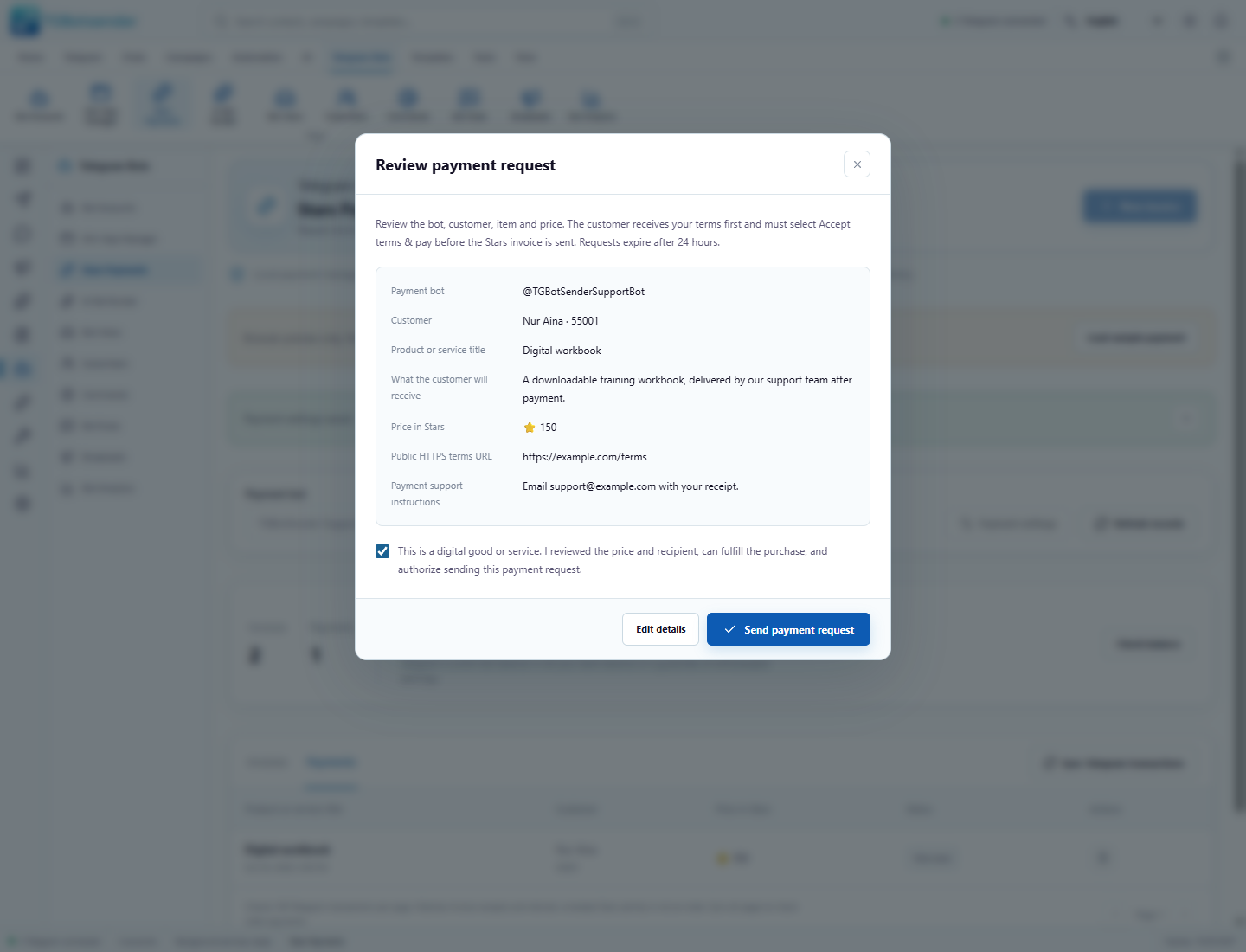
- Select Review payment request.
- Check the bot username, customer name and ID, digital item, Stars price, terms URL, and support instructions.
- Check the authorization box only if this is a digital good or service, the recipient and price are correct, and you can fulfill the purchase.
- Select Send payment request. The customer receives a terms-review message first, not an immediately paid order.
- The intended customer selects Accept terms & pay in their Telegram private chat. The bot then sends the Stars invoice, which the customer can pay in Telegram.
Requests expire 24 hours after creation. Terms acceptance and checkout approval are not proof of payment. If the request’s result is uncertain, check the bot chat and transaction history before creating a replacement.
Step 5 — Confirm payment, then deliver the item
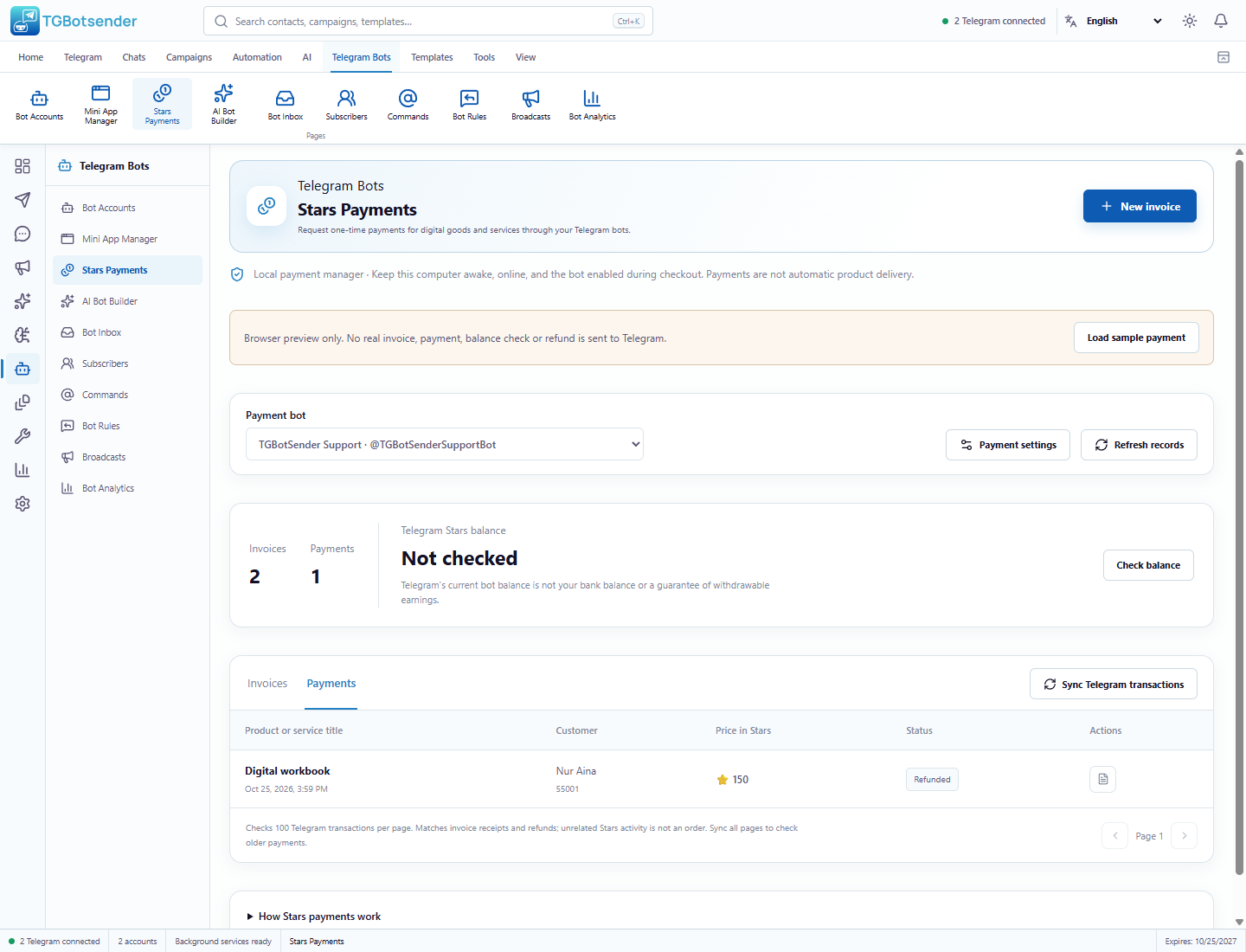
- Open the Payments tab. Use Refresh records if needed.
- Wait for the Telegram-confirmed payment record. An invoice marked Awaiting payment or Checkout approved — awaiting receipt is not yet a paid order.
- Select View details to check the customer, amount, local order reference, and Telegram payment reference. A verified payment awaiting fulfillment shows Awaiting delivery.
- Provide the purchased digital good or service through your normal process, such as replying in Bot Inbox.
- Only after providing it, select Mark delivered, confirm the delivery statement, and apply the action.
Mark delivered only records fulfillment. It does not send a file or message, generate a license, or grant access. Payments marked Needs review have no matching verified local invoice or have mismatched details; do not deliver automatically. Refunds or chargebacks can still occur later, so retain your own fulfillment records.
Step 6 — Check balances and reconcile transaction history
- Select Check balance to read the selected bot’s current Telegram Stars balance. Check its timestamp; it is not continuously refreshed.
- For missing or older payment information, select Sync Telegram transactions.
- If offered, select Sync next 100 and continue through the required pages. Each request checks up to 100 provider transactions.
- Review the updated payment and refund records. Syncing matches invoice receipts and refunds; unrelated ads, gifts, and withdrawal activity are not treated as sales.
- Use the previous/next page controls to browse local invoices or payments, 50 records per page.
The bot balance is not a bank balance or a guarantee of withdrawable earnings. Payment dates show when the record was stored locally, not bank settlement. Sync older pages after extended downtime or restoring an older backup. New Telegram activity may move page boundaries; restarting the scan is safe because repeated payments are deduplicated.
Step 7 — Review and issue a full Stars refund
- Open Payments and locate the original payment.
- Select the circular-arrow action, Refund full payment.
- Check the bot, customer identity, full Stars amount, item, and Telegram payment reference.
- Read the warning, check the authorization box, then confirm Refund full payment.
- Wait for the recorded result. If it is uncertain, check Telegram and sync transaction pages before deciding what to do. Do not blindly repeat the refund.
A full refund returns Stars to the original payer through the original bot. It is not a bank payout, cannot be redirected to another wallet/customer, and does not revoke goods already delivered. Partial refunds are not supported in this release. The app does not automatically retry an uncertain refund.
Step 8 — Cancel a request or stop new payments
- For a cancellable invoice, open Invoices → Cancel request, review the warning, and confirm.
- This blocks future checkout attempts for that request. It does not delete the Telegram message or refund a completed payment. An already-approved checkout cannot simply be undone by cancellation.
- To stop accepting new payments, open Payment settings, turn off Accept new payments, and save.
- Existing payment records, payment support, and reviewed refunds remain available when new payments are disabled.
A bot with invoice or payment history cannot be deleted from the app. Disable its worker or new payments instead, retaining the connection for history and refunds. Payment activity is also recorded under Reports → Activity history.
Example — Sell a digital workbook
Configure your terms and support for a connected bot. Ask the buyer to start its private chat, create Digital workbook at 150 Stars, review and send the request, then let the buyer accept the terms and pay. Wait for the confirmed record in Payments, send the workbook yourself, and mark it delivered. If a legitimate refund is needed, review and issue the full 150-Star refund against the original payment.
Scope, privacy, and withdrawals
- This release creates one-time digital-goods/service invoices for private-chat subscribers. It does not create recurring subscriptions, public multi-buyer checkout links, physical-goods orders, or automatic product delivery.
- Records are local to this device. Bot credentials stay in the operating-system credential vault. Protect your app backups as customer and business data.
- Earned-reward withdrawals remain with the bot owner’s official Telegram/Fragment workflow. TGBotSender does not convert cryptocurrency, collect wallet seeds/private keys, or withdraw to a bank account.
- Mini App Manager configures a hosted site’s launch button; it does not turn that site into an integrated Stars checkout. AI Telegram Bot Builder is separate from this reviewed invoice workflow.
Troubleshooting
- New invoice is greyed out: select the correct bot, enable its worker, restore its connection, configure terms/support, enable payments, and refresh records.
- Customer missing: ask them to start a private chat with this exact bot; check their Telegram ID and opt-out state, then search again.
- Invalid price or text: use whole Stars within the app’s stated range and respect the title/description limits. Some emoji count twice.
- Awaiting terms acceptance: the customer must select the terms-acceptance button before receiving an invoice. Forwarding the request does not authorize another buyer.
- Checkout approved but no payment: wait for the confirmed payment record. Approval by itself is not payment; check Telegram and sync transaction history if needed.
- Needs review: inspect the actual payer, price, payment type, and reference. Unmatched, mismatched, recurring, or extra payments for an order are not a second verified fulfillment.
- Result uncertain: a send or refund may already have succeeded. Check the bot chat and sync the relevant transaction pages before taking another action.
- Record or settings changed: refresh and review again. Do not reuse an outdated review to send another request.
- App closed or computer asleep: local checkout handling is unavailable. Restore the worker and connection; do not assume old updates or a visible invoice mean the payment completed.
Related: connect a Telegram bot, use the bot inbox and subscribers, and configure ordinary bot commands and buttons. For platform rules, see Telegram’s Stars payment documentation and the official refund method.