
Mini App Manager connects an already-hosted website to a Telegram bot’s default private-chat menu button. Keep several Mini App records locally, assign each to a connected bot, and explicitly review any Telegram menu change. This is not a website builder or hosting service.
Before you start
- Have a bot you own or are authorized to manage. Create it through @BotFather, then connect its token in TGBotSender. This feature uses a bot, not an ordinary Telegram user-account sender. Telegram Business is not required for this setup.
- Prepare a working, publicly accessible HTTPS Mini App URL. A local file, localhost page, or private-network URL is not supported. Your hosting and any backend remain your responsibility.
- Use the desktop app with an internet connection for checking or changing the Telegram button. Normal licensing and update requirements apply. Browser preview only simulates Telegram changes.
Step 1 — Open Mini App Manager
- Open Telegram Bots → Mini App Manager.
- If no bots are listed, select Connect a bot and complete bot setup first.
- Select Add Mini App. If you manage several bots, check which one you intend to use.
Step 2 — Enter the details and save locally
- Enter a Mini App name, such as Product catalogue. This is your local label.
- Choose the Assigned bot. Check its username, not just its local display name.
- Enter the Hosted Mini App URL, for example
https://example.com/catalogue. Replace the example with your own hosted site. - Enter Launch button text, such as Browse catalogue. This is the label users will see on the bot’s menu button.
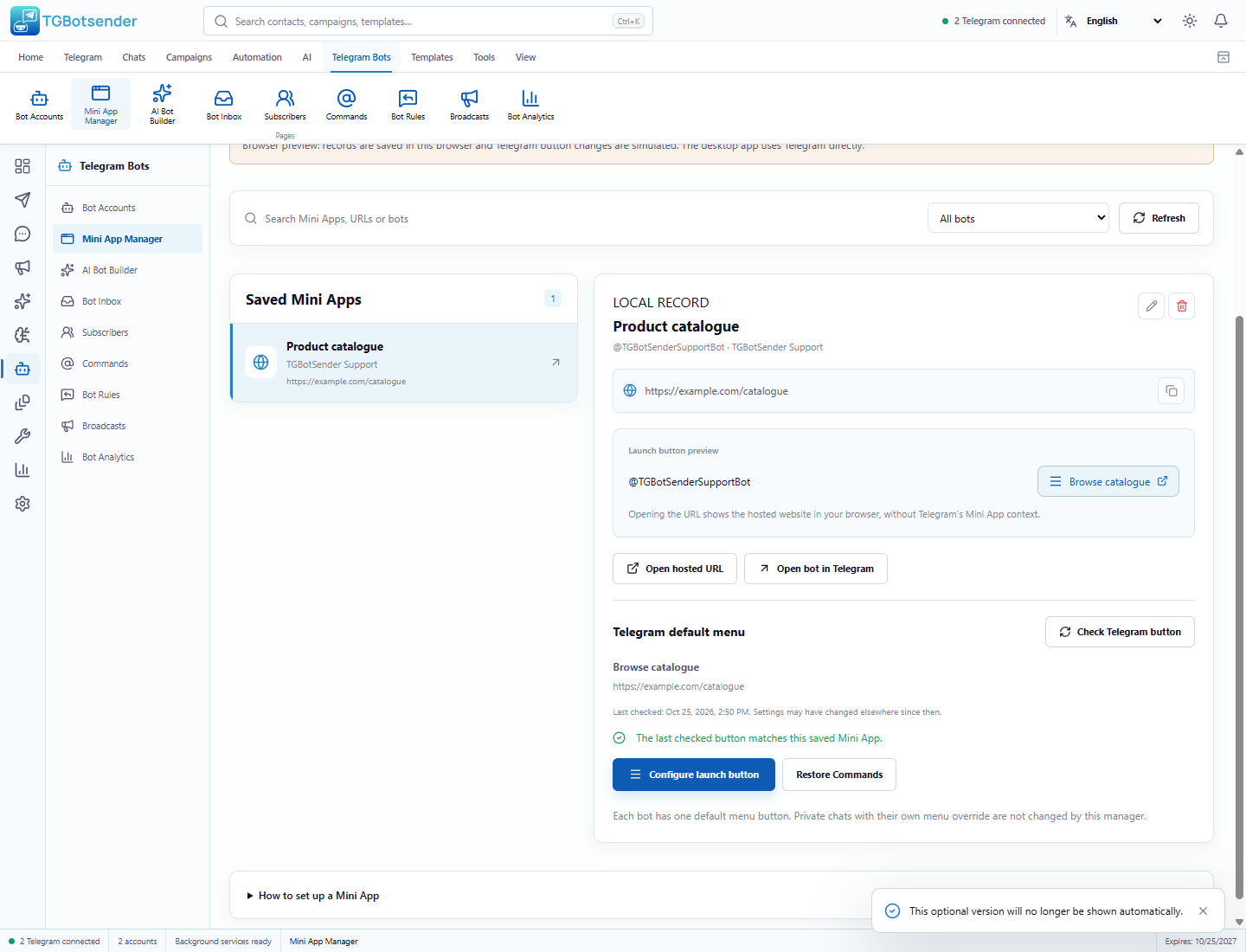
- Select Save locally. The record appears under Saved Mini Apps. Saving does not change or publish the Telegram button.
Step 3 — Check and configure the launch button
- Select the saved Mini App. Search by name or URL, or filter by bot if needed.
- Optionally select Check Telegram button to read the bot’s current default menu. The displayed result is a timestamped snapshot, not a continuously monitored status.
- Select Configure launch button. TGBotSender reads the current menu and opens a review dialog.
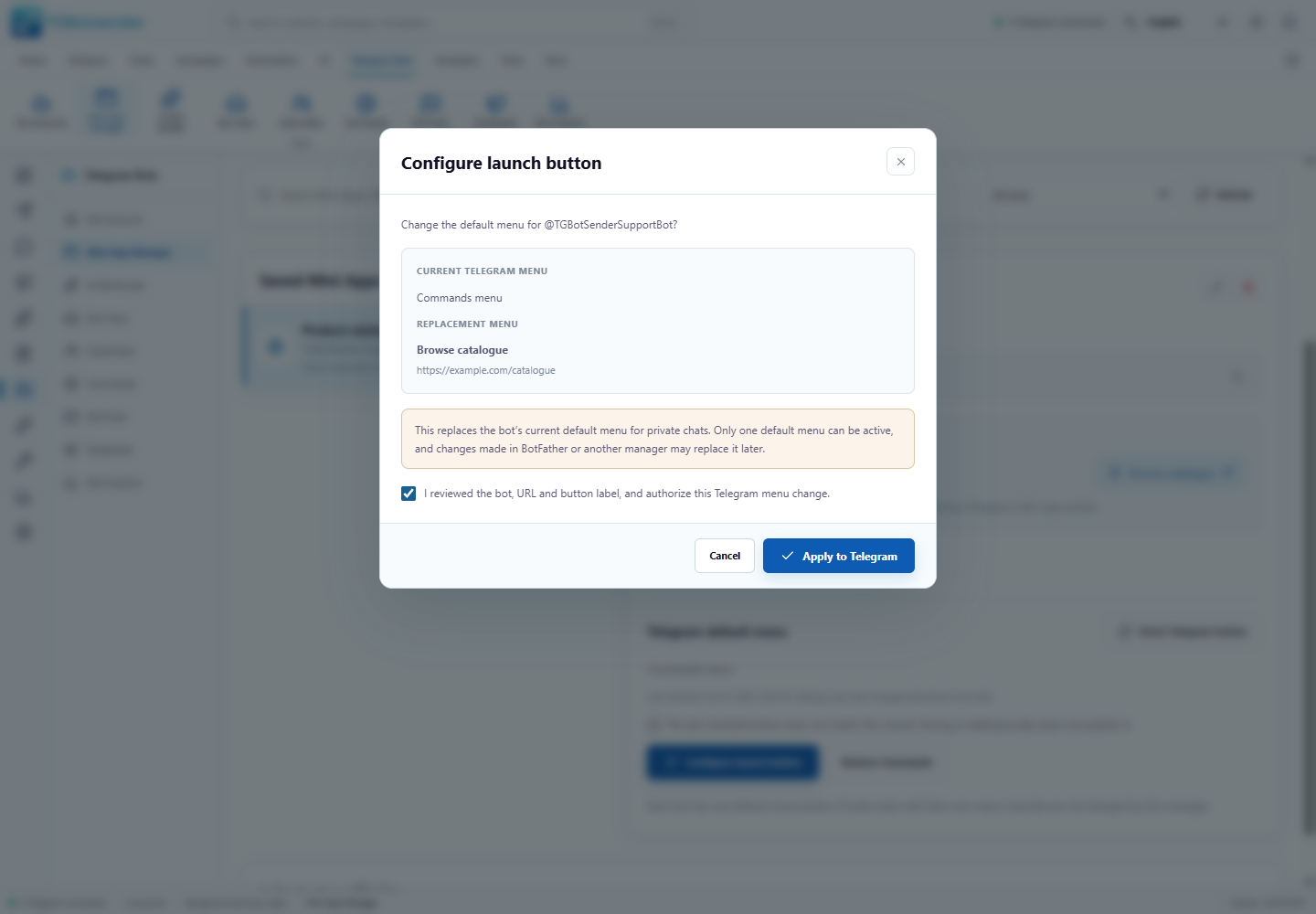
- Compare Current Telegram menu with Replacement menu. Check the bot username, hosted URL, and launch-button label.
- Read the replacement warning, then check I reviewed the bot, URL and button label, and authorize this Telegram menu change.
- Select Apply to Telegram and wait for confirmation. The app checks the saved menu again and reads back the result before reporting success.
Each bot has one default menu button. Applying another saved Mini App replaces that default. Existing menu overrides for individual private chats are not changed. Commands remain available to type; the default menu now launches the Mini App instead of listing commands.
Step 4 — Test in Telegram
- Select Open bot in Telegram, or find the bot by its username in Telegram.
- Open a private chat with that bot. Select Start if Telegram prompts you to begin the conversation.
- Tap the menu button with your configured label and confirm that the correct hosted site opens.
- Test your site’s actual actions and access controls with a test user before sharing it with customers.
Open hosted URL and the launch-button preview open the site in your external browser, without Telegram’s Mini App context. They are useful for checking the URL, but they do not replace testing the launch inside Telegram. The manager does not check website ownership, scan its security, or create the site’s Telegram integration.
Step 5 — Edit, switch, or reassign a Mini App
- Select the local record and its pencil icon, Edit Mini App.
- Change the name, URL, button label, or assigned bot, then select Save locally.
- To use those changes on Telegram, repeat the Configure launch button review and confirmation.
- To switch between saved Mini Apps for the same bot, select the desired record and explicitly apply it. Saving several records does not create several menu buttons.
Reassigning a record does not clear the previous bot’s Telegram button. If you no longer want that old button, select the previous bot and use Restore Commands separately.
Step 6 — Restore Commands or delete a local record
- To replace a Mini App menu with the commands menu, select the correct bot using the bot filter, then select Restore Commands.
- Review the current and replacement menus, check the authorization box, and select Restore Commands in the confirmation dialog. Wait for the checked result.
- Your saved Mini App records remain available. You can apply one again later.
- To remove only a saved record, select its trash icon, Delete Mini App, and confirm Delete locally.
Deleting locally does not remove the hosted website or change the Telegram button. You can still check the bot’s menu or restore Commands even after deleting its last local record. Select the bot in the filter to target it.
Example — A product catalogue
Host your catalogue at your own public HTTPS address. Add it as Product catalogue, assign your support bot, and use Browse catalogue as the label. Save locally, review and apply the launch button, then test from the bot’s private chat. Later, edit the URL and apply again to switch catalogues, or use Restore Commands to bring back the commands menu.
What stays local, and what needs hosting?
- The manager’s names, URLs, bot assignments, and labels are saved on this device. Bot credentials stay in the operating-system credential vault; the manager does not send your bot token to the hosted URL.
- The Telegram menu setting persists when TGBotSender closes. The Mini App remains dependent on its website and any backend being online.
- TGBotSender’s local bot reply workers still require the app and computer to be running. Keeping a launch button does not move those workers to a server.
- The hosted site’s owner is responsible for authentication, privacy, and validating Telegram initialization data before trusting user identity or performing sensitive actions. See Telegram’s Mini App validation guidance.
Menu button versus profile Main Mini App
This manager changes the bot’s default private-chat menu button, not every Telegram launch surface. The profile’s Main Mini App, its profile Launch app button, and short-name configuration remain managed through @BotFather. See Telegram’s menu-button documentation for the distinction. AI Telegram Bot Builder is a separate tool for supported bot commands, rules, and flows; it does not create the hosted Mini App site.
Troubleshooting
- Add Mini App is unavailable: connect a bot first and wait for the bot list to load.
- URL rejected: use public HTTPS, without embedded usernames/passwords, spaces, or backslashes. Obvious local hosts and private IP addresses are rejected. The URL limit is 2,048 bytes. Passing validation does not guarantee the site is reachable or safe.
- Name or label rejected: use a name of 1–100 characters and a button label of 1–64 characters. Some emoji count as two label characters. Avoid control characters and duplicate names under the same bot.
- Saved but not visible in Telegram: saving is local only. Apply the launch button, check the correct bot, and reopen its private chat. An existing per-chat menu override can show a different button.
- Menu changed since review: another manager or BotFather may have changed it. Check the button again and review the new comparison before confirming.
- Timeout or result could not be confirmed: Telegram may already have applied the change. Select Check Telegram button before deciding whether to retry; do not assume failure means nothing changed.
- Token or connection error: check internet access and reconnect the bot using its current valid token. If Telegram asks you to wait, respect that delay.
- Profile Launch app button missing: configure the Main Mini App through BotFather; applying a private-chat menu button does not create it.
Next: connect or check your bot, or create bot commands, inline buttons, and reply keyboards.